

How to deploy proxmox VMs from Azure Devops pipeline using terraform
Why?
I wanted to set up something similar to Azure or AWS in my home lab - where you can simply click “I want a virtual machine,” and the VM is provisioned automatically with an SSH key, username, and the correct virtual network, etc.
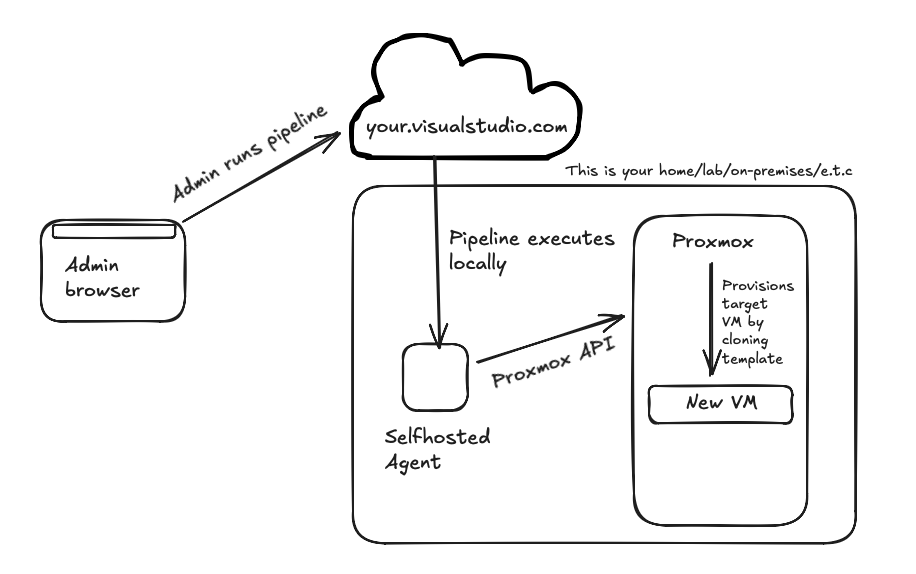
To achieve that, I created an Azure DevOps pipeline that uses Terraform and cloud-init. Here’s what the setup looks like:
Setting things up
Agent Pools and Agent to run terraform
You’ll need account at Azure Devops. It is free. Create one, create organization and repository where you’ll be storing your infrastructure-as-a-code to deploy the VMs.
Then go to organization-> organization settings->agent pools -> add pool:
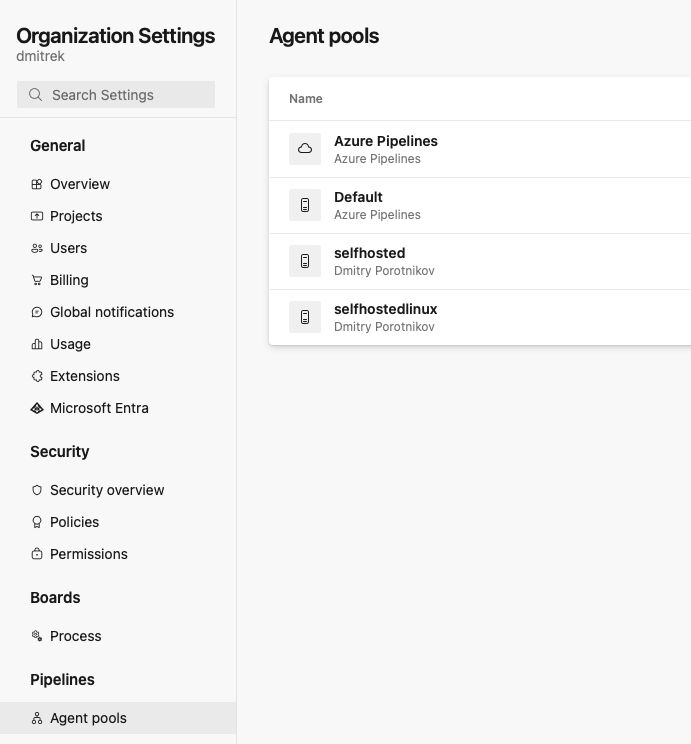
After this is done, create and provision a new agent. Luckily this phase is well documented by Microsoft, so you’ll just have to follow the documentation. I recommend linux agent, but for terraform I don’t think it really matters.
If you managed to configure the agent correctly, it should report its status and appear “green”:
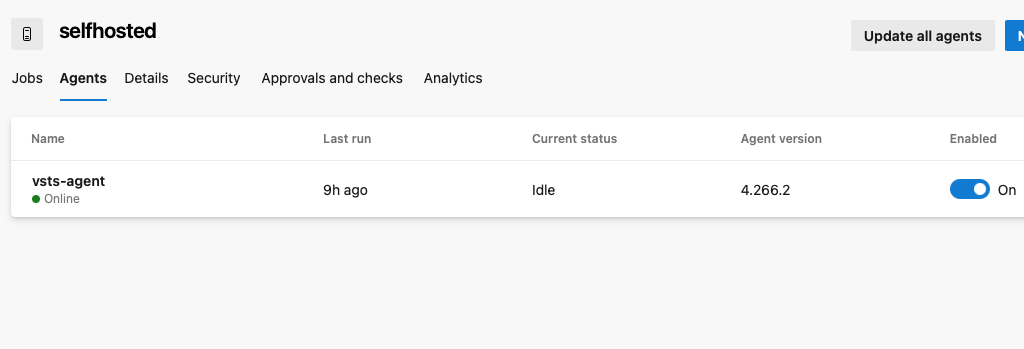
At this stage you are ready to run pipelines, but you need actual pipeline code to do so.
After agent is installed, install terraform to the VM: https://developer.hashicorp.com/terraform/tutorials/aws-get-started/install-cli
Create repository
You’ll need to create repository to store both your pipeline and terraform code. I’ve named mine “InfraAsCode” but it is really up to you. Creative freedom :)
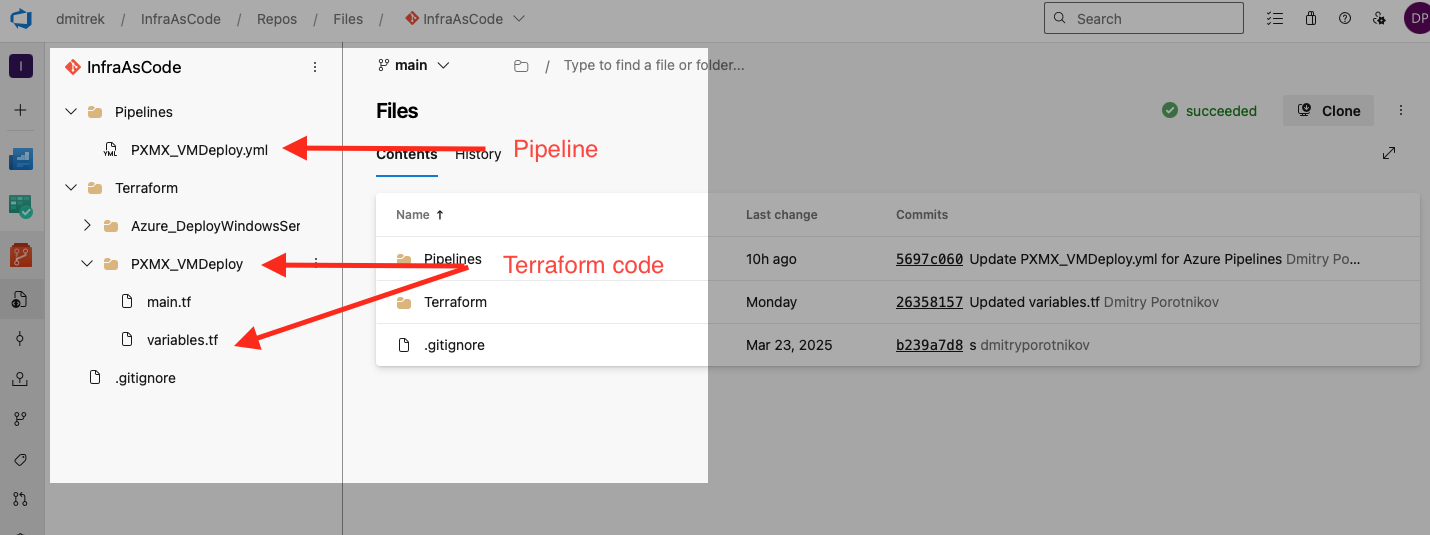
Here is my starter sample you can build upon. It probably can be improved in many ways, but it is what it is:
main.tf We are going to use this provider to kick things in: https://registry.terraform.io/providers/Telmate/proxmox/latest/docs
Make sure to check this URL and configure permissions on your proxmox accordingly :)
terraform {
  required_providers {
    proxmox = {
      source  = "Telmate/proxmox"
      version = "3.0.2-rc07"
    }
  }
}

provider "proxmox" {
  pm_api_url      = var.pm_api_url
  pm_user         = var.pm_user
  pm_password     = var.pm_password
  pm_tls_insecure = var.pm_tls_insecure
}

resource "proxmox_vm_qemu" "terraform_vm" {
  name        = var.vm_name
  target_node = var.target_node
  clone       = var.template_name
  scsihw      = "virtio-scsi-single"
  full_clone  = true
  cores       = var.cores
  memory      = var.memory
  tags        = var.vm_tags
  ipconfig0   = var.ipconfig0
  nameserver  = var.nameserver

  # Cloud-init / guest integration
  agent      = 1
  os_type    = "cloud-init"
  ciuser     = var.ciuser
  cipassword = var.cipassword   # Bad practice for prod, but it is lab so the the TF state it goes
  sshkeys    = var.sshkeys      # preferred vs passwords

  network {
    id         = 0
    bridge     = var.bridge
    firewall   = false
    link_down  = false
    model      = "virtio"
  }

  disks {
    scsi {
      scsi0 {
        disk {
          size    = var.disk_size
          storage = var.storage_name
        }
      }
      scsi1 {
        cloudinit {
          storage = var.storage_name
        }
      }
    }
  }
}
variables.tf
variable "pm_api_url" {
  description = "Proxmox API URL"
  type = string
}

variable "pm_user" {
  description = "Proxmox username"
  type = string
}

variable "ciuser" {
  type = string
}

variable "cipassword" {
  type = string
  sensitive = true
}

variable "nameserver" {
  description = "DNS Server"
   type = string
}

variable "sshkeys" {
   type = string
}


variable "pm_password" {
  description = "Proxmox password or API token"
  type        = string
  sensitive   = true
}

variable "pm_tls_insecure" {
  description = "Allow insecure TLS connection"
  type        = bool
  default     = true
}

variable "vm_name" {
  description = "Name of the VM"
  type        = string
}

variable "target_node" {
  description = "Target Proxmox node"
  type        = string
}

variable "template_name" {
  description = "VM Template to clone from"
  type        = string
}

variable "cores" {
  description = "Number of CPU cores"
  type        = number
}

variable "memory" {
  description = "Memory in MB"
  type        = number
}

variable "vm_tags" {
  description = "VM Tags"
  type        = string
  default     = "terraform"
}

variable "ipconfig0" {
  description = "VM network IP configuration"
  type        = string
}

variable "bridge" {
  description = "Network bridge name"
  type        = string
}

variable "disk_size" {
  description = "Disk size for scsi0"
  type        = string
}

variable "storage_name" {
  description = "Proxmox storage name"
  type        = string
}
Pipeline code
PXMX_VMDeploy.yml
trigger: none

variables:
  - group: terraform-vars
  # Global setting for pipeline
  - name: TF_IN_AUTOMATION
    value: 'true'

parameters:
  - name: pm_api_url
    displayName: 'Proxmox API URL'
    type: string
    default: 'https://192.168.1.104:8006/api2/json'
  - name: target_node
    displayName: 'Target Proxmox Node'
    type: string
    default: 'macmini'
  - name: vm_name
    displayName: 'VM Name'
    type: string
    default: 'ubuntu2404test'
  - name: template_name
    displayName: 'Template VM Name'
    type: string
    default: 'ubuntu2404'
    values:
      - 'ubuntu2404'
      - 'rocky9'
  - name: cores
    displayName: 'CPU Cores'
    type: number
    default: 2
  - name: memory
    displayName: 'Memory (MB)'
    type: number
    default: 4096
  - name: ipconfig0
    displayName: 'IP Configuration'
    type: string
    default: 'ip=192.168.3.2/24,gw=192.168.3.1,dns=8.8.8.8'
  - name: nameserver
    displayName: 'DNS Server'
    type: string
    default: '8.8.8.8'
  - name: ciuser
    displayName: 'VM User'
    type: string
    default: 'ev'
  - name: cipassword
    displayName: 'VM Password'
    type: string
    default: 'test'
  - name: sshkeys
    displayName: 'SSH Public Keys'
    type: string
    default: 'ssh-ed25519 AAAAC3NzaC1lZDI1NTE5AAAAICfyYq9Mzh2/aIr75YHWOBEsf2YfnPrzzQvQg8svg2En'
  - name: bridge
    displayName: 'Network Bridge'
    type: string
    default: 'vmbr1'
  - name: disk_size
    displayName: 'Disk Size'
    type: string
    default: '12G'
  - name: storage_name
    displayName: 'Storage Name'
    type: string
    default: 'VM'
  - name: destroy
    displayName: 'Run Terraform Destroy?'
    type: boolean
    default: false

stages:
  # --------------------------------------------------------------------------
  # STAGE: PLAN
  # --------------------------------------------------------------------------
  - stage: Terraform_Plan
    condition: eq(${{ parameters.destroy }}, false)
    jobs:
      - job: Plan
        pool: 'selfhosted'
        steps:
          - script: |
              cd PXMX_VMDeploy
              terraform init -input=false
              # Generate plan and save to binary file 'main.tfplan'
              terraform plan -input=false -out=main.tfplan
            workingDirectory: '$(Build.SourcesDirectory)/Terraform/PXMX_VMDeploy'
            displayName: 'Terraform Init & Plan'
            # Map parameters to TF_VAR_ env vars.
            # Terraform automatically picks these up (e.g. TF_VAR_vm_name -> var.vm_name)
            env:
              TF_VAR_pm_api_url: ${{ parameters.pm_api_url }}
              TF_VAR_pm_user: $(pm_user)
              TF_VAR_pm_password: $(pm_password)
              TF_VAR_vm_name: ${{ parameters.vm_name }}
              TF_VAR_target_node: ${{ parameters.target_node }}
              TF_VAR_template_name: ${{ parameters.template_name }}
              TF_VAR_cores: ${{ parameters.cores }}
              TF_VAR_memory: ${{ parameters.memory }}
              TF_VAR_ipconfig0: ${{ parameters.ipconfig0 }}
              TF_VAR_bridge: ${{ parameters.bridge }}
              TF_VAR_disk_size: ${{ parameters.disk_size }}
              TF_VAR_storage_name: ${{ parameters.storage_name }}
              TF_VAR_sshkeys: ${{ parameters.sshkeys }}
              TF_VAR_ciuser: ${{ parameters.ciuser }}
              TF_VAR_nameserver: ${{ parameters.nameserver }}
              TF_VAR_cipassword: ${{ parameters.cipassword }}

          # Publish the plan file so the Apply stage can use it
          - task: PublishPipelineArtifact@1
            displayName: 'Publish Plan Artifact'
            inputs:
              targetPath: '$(Build.SourcesDirectory)/Terraform/PXMX_VMDeploy/main.tfplan'
              artifact: 'terraform_plan'

  # --------------------------------------------------------------------------
  # STAGE: APPLY
  # --------------------------------------------------------------------------
  - stage: Terraform_Apply
    dependsOn: Terraform_Plan
    condition: and(succeeded('Terraform_Plan'), eq(${{ parameters.destroy }}, false))
    jobs:
      - deployment: Terraform_Apply
        environment: 'production'
        pool: 'selfhosted'
        strategy:
          runOnce:
            deploy:
              steps:
                # Download the plan file from the previous stage
                - task: DownloadPipelineArtifact@2
                  displayName: 'Download Plan Artifact'
                  inputs:
                    artifact: 'terraform_plan'
                    path: '$(Pipeline.Workspace)/terraform_plan'

                - script: |
                    cd PXMX_VMDeploy
                    terraform init -input=false
                    # Apply the binary plan file.
                    # No variables needed here; they are baked into the plan file.
                    terraform apply -input=false -auto-approve "$(Pipeline.Workspace)/terraform_plan/main.tfplan"
                  workingDirectory: '$(Build.SourcesDirectory)/Terraform/PXMX_VMDeploy'
                  displayName: 'Terraform Apply'
                  env:
                    # Credentials are required for the Provider to authenticate,
                    # even if other logic vars are in the plan file.
                    TF_VAR_pm_user: $(pm_user)
                    TF_VAR_pm_password: $(pm_password)

  # --------------------------------------------------------------------------
  # STAGE: DESTROY
  # --------------------------------------------------------------------------
  - stage: Terraform_Destroy
    condition: eq(${{ parameters.destroy }}, true)
    jobs:
      - deployment: Terraform_Destroy
        environment: 'production'
        pool: 'selfhosted'
        strategy:
          runOnce:
            deploy:
              steps:
                - script: |
                    cd PXMX_VMDeploy
                    terraform init -input=false
                    terraform destroy -input=false -auto-approve
                  workingDirectory: '$(Build.SourcesDirectory)/Terraform/PXMX_VMDeploy'
                  displayName: 'Terraform Destroy'
                  # We must repeat the mapping here because Destroy generates a fresh plan
                  env:
                    TF_VAR_pm_api_url: ${{ parameters.pm_api_url }}
                    TF_VAR_pm_user: $(pm_user)
                    TF_VAR_pm_password: $(pm_password)
                    TF_VAR_vm_name: ${{ parameters.vm_name }}
                    TF_VAR_target_node: ${{ parameters.target_node }}
                    TF_VAR_template_name: ${{ parameters.template_name }}
                    TF_VAR_cores: ${{ parameters.cores }}
                    TF_VAR_memory: ${{ parameters.memory }}
                    TF_VAR_ipconfig0: ${{ parameters.ipconfig0 }}
                    TF_VAR_bridge: ${{ parameters.bridge }}
                    TF_VAR_disk_size: ${{ parameters.disk_size }}
                    TF_VAR_storage_name: ${{ parameters.storage_name }}
                    TF_VAR_sshkeys: ${{ parameters.sshkeys }}
                    TF_VAR_ciuser: ${{ parameters.ciuser }}
                    TF_VAR_nameserver: ${{ parameters.nameserver }}
                    TF_VAR_cipassword: ${{ parameters.cipassword }}
We do not store proxmox credentials in the pipeline, and instead reference them from Library->Variable Groups:
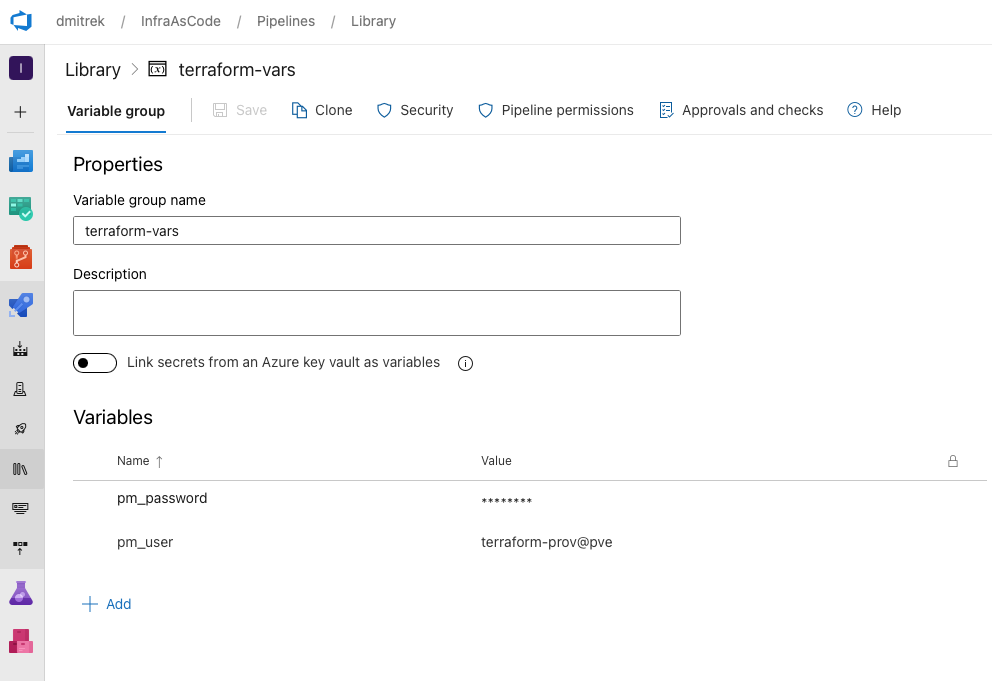
You can move other values you consider “sensitive” to the variable group, but at this stage as it is dev-test VMs, it also doesn’t really bother me that, for example, VM password will be captured in TFSTATE file, as I’m going to destroy the VM in a next few hours after deployment. If this is crucial for you, consider deploying only with public key.
Create pipeline
Go to pipelines ->New Pipeline. Pick Azure Repos as git source. Pick repository you just created and -> Select an existing YAML file. Pick PXMX_VMDeploy.yml
Configure Proxmox template
At this stage you are ready to run pipeline, but you need a base cloud-init VM to clone. If you already know how to create a cloud-init capable VM, feel free to skip this step.
You have two choices - create a provision your own cloud-init capable image (best option), or rely on a vendor public cloud images.
You can download those here:
Ubuntu -> https://cloud-images.ubuntu.com
Rocky Linux -> https://wiki.rockylinux.org/rocky/image/
Creating and configuring cloud-init image is out of the scope for this tutorial, so I’ll use a ready pre-built image as an example.
Create a new VM you’d use for templating. Do not attach any disks, do not start it. Chose proper for the image boot type (MBR/UEFI). Upload cloud-init image (qcow/img) to the proxmox server using SFTP.
In Proxmox console, prepare this new VM (lets assume its ID 101) for templating:
- Import the disk into a Proxmox storage (example:
local-lvm):
qm importdisk 101 /path/to/cloud-image.img local-lvm
This creates a new volume, usually named something like:local-lvm:vm-101-disk-0
- Attach the imported disk as
scsi0and set the controller:
qm set 101 --scsihw virtio-scsi-pci --scsi0 local-lvm:vm-101-disk-0
- Add a Cloud-Init drive (you need this for
ciuser,sshkeys,ipconfig0, etc.):
qm set 101 --scsi1 local-lvm:cloudinit
- Boot settings + guest agent (recommended):
qm set 101 --boot c --bootdisk scsi0
qm set 101 --agent enabled=1
Now VM 101 has:
scsi0= your imported cloud imagescsi1= cloud-init drive (where Proxmox writes metadata/user-data)
Demo - putting things in motion
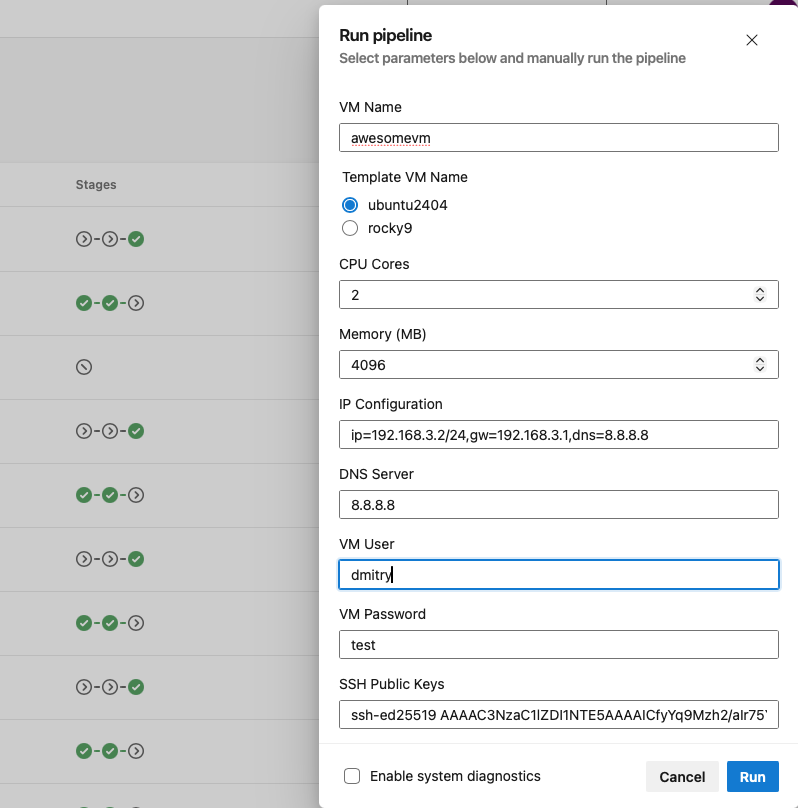
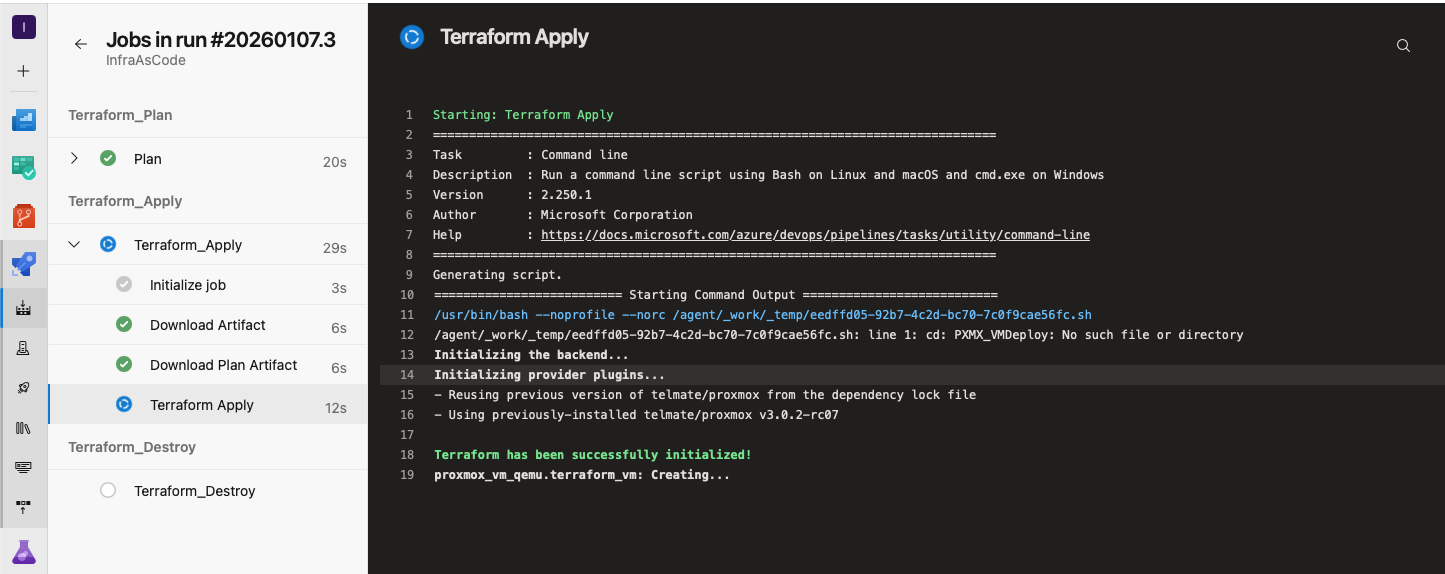
Running pipeline
VM deployed
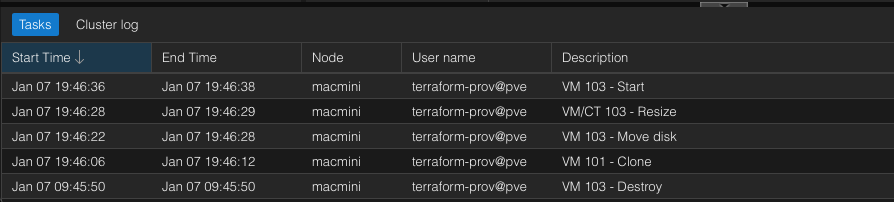
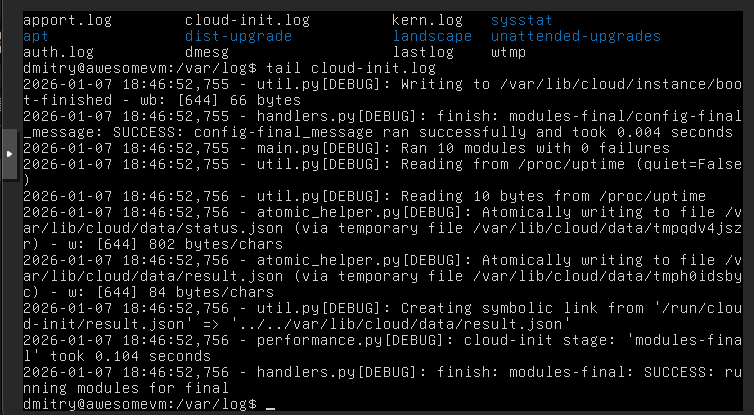
Cloud-init kicked in
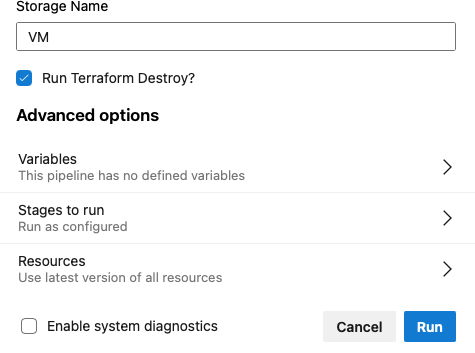
Destroying VM from the same pipeline
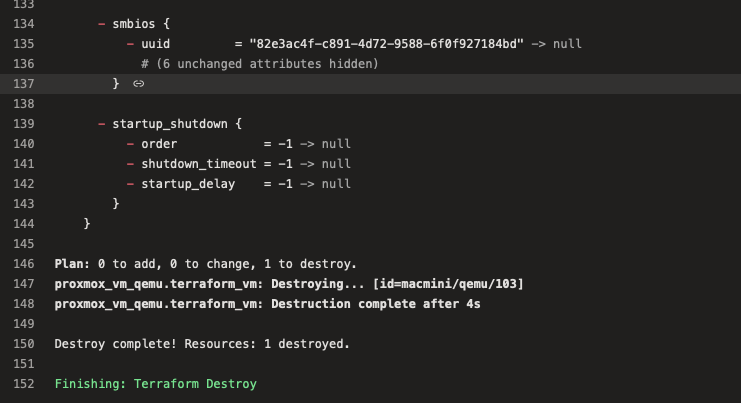
VM Destroyed
